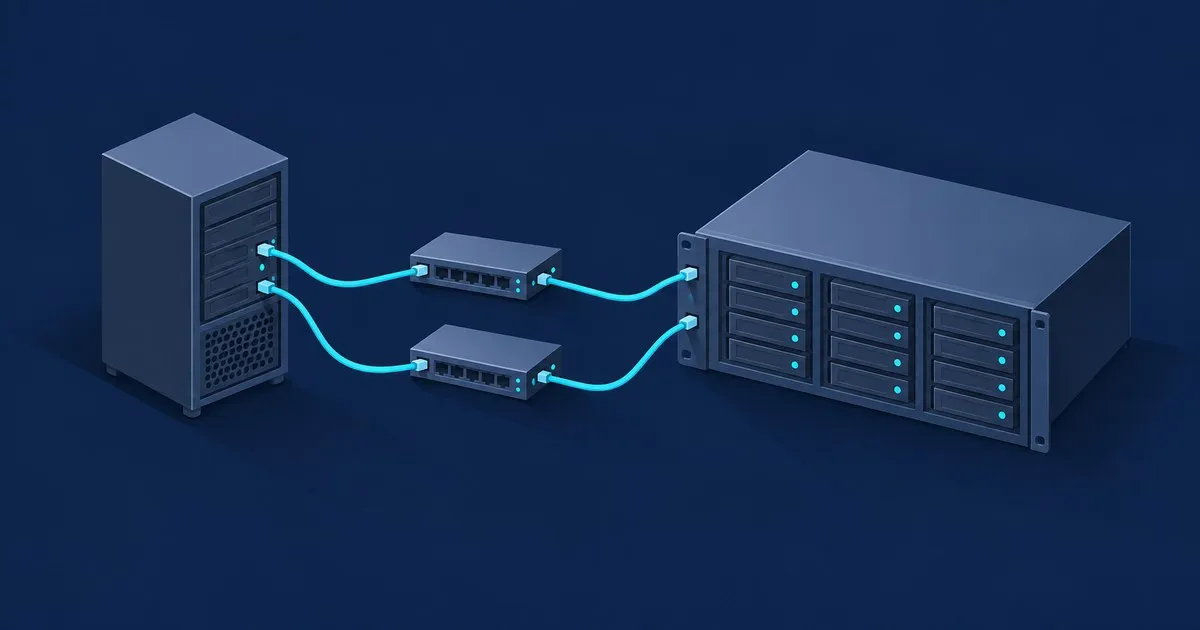
iSCSI target setup on Windows Server is a role service, not a separate product: you install a feature, create a VHDX, wrap it in a target, and map it to a LUN. The part worth slowing down for is the constraint list, because the Microsoft target enforces limits that shape the design: one connection per session, and no Unmap on dynamically expanding disks. The same role service ships in Windows Server 2016, 2019, 2022 and 2025.
Install the role and prepare the backing volume
The iSCSI Target Server role service installs with one command:
Install-WindowsFeature -Name FS-iSCSITarget-Server -IncludeManagementToolsIn Server Manager it sits under File and Storage Services, then File and iSCSI Services. Microsoft positions it for diskless and network boot, block storage for applications that cannot use SMB, non-Microsoft initiators, and lab environments.
Sort the backing volume out before you create anything. The documented limits list NTFS and ReFS as supported hosting volumes, and FAT, FAT32 and exFAT as unsupported and enforced. Cluster Shared Volumes v2 is also unsupported. The New-IscsiVirtualDisk reference adds three more rules that produce confusing errors when broken: the path must be absolute, the file name must end in .vhdx, and the file cannot be a network file or live in a compressed, sparse or transacted folder.
Create the virtual disk, target and mapping
Three objects, in order. The virtual disk is the storage, the target is the login endpoint, and the mapping bolts one to the other at a LUN number.
New-IscsiVirtualDisk -Path "D:\iSCSI\sql-data.vhdx" -SizeBytes 500GB -UseFixed

New-IscsiServerTarget -TargetName "sql01" `
  -InitiatorIds @("IQN:iqn.1991-05.com.microsoft:sql01.lab.example")

Add-IscsiVirtualDiskTargetMapping -TargetName "sql01" `
  -Path "D:\iSCSI\sql-data.vhdx" -Lun 0
-UseFixed picks the fixed parameter set. Leave it off and you get a dynamically expanding VHDX, which is the default. Fixed disks are cleared during creation; the -DoNotClearData switch skips that, and Microsoft’s own note says it can reveal pre-existing data and is not recommended.
Dynamic is tempting and usually wrong here. The limits page lists thin provisioning and Unmap as unsupported, so a dynamic VHDX grows and never shrinks when the initiator deletes data. On capacity, VHDX caps at 64 TB in fixed, dynamic and differencing formats with a 3 MB minimum; legacy VHD caps at 16 TB fixed and 2 TB for parent and differencing disks.
The -InitiatorIds parameter takes IdType:Value pairs, where the type is DNSName, IPAddress, IPv6Address, IQN or MACAddress, per the New-IscsiServerTarget reference. IQN is the identifier to prefer. Its shape comes from RFC 7143 section 4.2.7.4: iqn. followed by a yyyy-mm date code for when the organisation held the domain, the reversed domain name, and an optional colon-delimited local identifier. The client’s own IQN is on the Configuration tab of the iSCSI Initiator control panel, iscsicpl.
Add-IscsiVirtualDiskTargetMapping assigns the lowest available LUN if you omit -Lun, and the number must be unique within a target. Pin it explicitly: it keeps disk identification stable as you add and remove disks later.
Restrict who can log in
The initiator ID list is your access control, and it is easy to disable by accident. Set-IscsiServerTarget documents -InitiatorId "IQN:*", which assigns the target to every initiator that connects, and its own guidance is to be very cautious with it because no validation is performed. It is a troubleshooting tool, not a configuration.
Enable CHAP on the target before the initiator’s first login. For this example, generate a unique, random 16-character ASCII secret in a credential manager, store it there, and enter it at the secure prompt. The example deliberately uses 16 characters; do not paste a secret into the script or reuse one from another target.
$secret = Read-Host "Enter the unique 16-character CHAP secret" -AsSecureString
if ($secret.Length -ne 16) {
  throw "This example requires a 16-character CHAP secret."
}
$chap = New-Object System.Management.Automation.PSCredential("iscsiuser", $secret)
Set-IscsiServerTarget -TargetName "sql01" -EnableChap $true -Chap $chap
The initiator connections below use Connect-IscsiTarget with -AuthenticationType ONEWAYCHAP plus the matching -ChapUsername and -ChapSecret on both paths. The accepted authentication values are NONE, ONEWAYCHAP and MUTUALCHAP, uppercase only. -EnableReverseChap and -ReverseChap add the target-authenticates-to-initiator direction, which is what MUTUALCHAP expects.
CHAP authenticates a login. It does not encrypt anything, and iSCSI payloads are plaintext on the wire. Keep the traffic on a dedicated storage network, and use IPsec if it has to cross anything shared; the limits page lists IPsec, jumbo frames and CRC offload as supported, and iSCSI offload as not supported. The same background applies to any target implementation, which the iSCSI fundamentals guide covers in more depth.
Limits that decide the design
| Item | Support limit | Enforced |
|---|---|---|
| Targets per target server | 256 | No |
| Virtual disks per target server | 512 | No |
| Virtual disks per target | 256 | Yes |
| Sessions per target | 544 | Yes |
| Connections per session | 1 | Yes |
| Error recovery level | 0 | Yes |
| Snapshots per LU | 512 | Yes |
| MPIO paths | 4 | No |
| Failover cluster nodes | 8 | No |
| Portal IP addresses | 64 | Yes |
Two rows carry most of the weight. Connections per session is fixed at 1, so MC/S is unavailable and MPIO is the only way to get a second path. And converting a stand-alone target server to a clustered one, or back, is listed as not supported, with target and virtual disk configuration lost in the attempt. Decide clustering before you build.
Add MPIO properly
On the initiator, install MPIO and enable automatic claiming for iSCSI:
Install-WindowsFeature -Name Multipath-IO
Enable-MSDSMAutomaticClaim -BusType iSCSI
Enable-MSDSMAutomaticClaim accepts only SAS and iSCSI, and you run it once per bus type. Plan a restart after the feature install. After restarting, make sure the Microsoft iSCSI Initiator service is running and set to start automatically. Substitute your storage addresses below, discover the target, and enter its returned IQN. Re-enter the same secret configured on the target; variables from the target’s PowerShell session are not available on the initiator.
New-IscsiTargetPortal -TargetPortalAddress 10.10.30.10 `
  -InitiatorPortalAddress 10.10.30.21
New-IscsiTargetPortal -TargetPortalAddress 10.10.31.10 `
  -InitiatorPortalAddress 10.10.31.21
Get-IscsiTarget
$iqn = Read-Host "Enter the target IQN returned by Get-IscsiTarget"
$secret = Read-Host "Enter the same 16-character CHAP secret used on the target" -AsSecureString
if ($secret.Length -ne 16) {
  throw "This example requires the target's 16-character CHAP secret."
}
$chap = New-Object System.Management.Automation.PSCredential("iscsiuser", $secret)

Connect-IscsiTarget -NodeAddress $iqn -TargetPortalAddress 10.10.30.10 `
  -InitiatorPortalAddress 10.10.30.21 -IsMultipathEnabled $true -IsPersistent $true `
  -AuthenticationType ONEWAYCHAP -ChapUsername $chap.UserName `
  -ChapSecret ($chap.GetNetworkCredential().Password)
Connect-IscsiTarget -NodeAddress $iqn -TargetPortalAddress 10.10.31.10 `
  -InitiatorPortalAddress 10.10.31.21 -IsMultipathEnabled $true -IsPersistent $true `
  -AuthenticationType ONEWAYCHAP -ChapUsername $chap.UserName `
  -ChapSecret ($chap.GetNetworkCredential().Password)
Discovery uses TCP 3260 unless you override -TargetPortalPortNumber. Each connection pins both ends and uses -IsPersistent $true so the session reconnects after a restart. Once connected, the disk is raw and belongs to the client, so Get-Disk, Initialize-Disk, New-Partition and Format-Volume run on the initiator. The target server only ever sees an open VHDX file, which is why a backup taken there during a live session is crash-consistent at best. Quiesce from the initiator side.
Skipping -InitiatorPortalAddress lets Windows choose the source interface, which is how two “paths” end up on one NIC. If a second path logs in and then drops, the login timeout and path error checklist is the faster route than guessing at MPIO policy.
Snapshots, backup and when to use something else
The target supports snapshot create and restore with a 512-per-LU ceiling, but writable snapshots, online rollback and snapshot conversion are listed as unsupported, and disks based on differencing VHDs cannot be snapshotted at all. LUN cloning is unsupported; the documented substitute is differencing VHDs, capped at 256 children per parent and two levels deep for VHDX. VSS or VDS operations driven from the application server need the iSCSI Target Storage Provider role service installed there, running the same Windows Server version as the target.
That feature set is the honest dividing line. If you want cheap snapshots, replication and pool-level integrity checking under your LUNs, that belongs to a storage appliance rather than a file on an NTFS volume, and the protocol comparison for NAS-hosted block storage is the better starting point. The Windows target earns its place when the capacity already lives on a Windows file server, when you need diskless boot, or when a test cluster needs shared block storage today. For multi-host designs with zoning and masking on SAN hardware, see the SAN fabric, zoning and LUN masking guide.
Related across the network
- Which Share Type to Use in TrueNAS: SMB, NFS or iSCSI — truenasguide.com
- NVMe-oF vs iSCSI vs Fibre Channel: SAN Transport Guide — sanstorageguide.com


